

Getting Started as a Supervisor
If a student, provisional psychologist, or registrar has added you as their supervisor on Logsage, this guide walks you through creating your account, accessing the supervisor portal, and reviewing and digitally signing their logbook entries—completely free if you only need supervision features. Once your supervisee has entered your email address and you have a Logsage account with that same email, your supervisees appear immediately—no connection or accept-invite step required.
Logsage Is Free for Supervisors
If you only want to review and sign supervisee logbooks—and don’t need your own CPD logbook or other full-platform features—Logsage offers a Supervision Only ($0) plan. No credit card is required.
The Supervision Only plan gives you access to:
- Supervisees — see everyone who has added you, grouped by principal or secondary role
- Review & Sign — initial supervision and PD entries, approve weekly periods, and sign full logbook certifications
- Digital signatures — upload your signature and initials once, then sign digitally in the app
- Help resources and profile management
It does not include CPD logging, analytics, calendar view, voice entry, or other features for managing your own logbook. If you later want those, you can upgrade to a paid plan at any time.
To select the Supervision Only plan, go to Profile → Explore plans and pricing after creating your account and choose the $0 Supervision Only option.
As of June 2026, more than 600 Australian psychologists use Logsage, including 120 board-approved supervisors.
How You Get Connected to Your Supervisees
Connecting with a supervisee requires no action on your part. As long as your supervisee has added you on their Supervisors page using your email address, and you have a Logsage account registered with that same email, you will immediately see them on your Supervisees page. There is no accept-invite step, no link to click, and nothing to approve.
This works in either order:
- Supervisee adds you first: When you later sign up (or log in) with the matching email, your supervisee(s) appear straight away.
- You already have an account: When a supervisee adds your email, they appear on your Supervisees page immediately—you may also receive a notification email.
The only requirement is that the email address your supervisee entered must match the email on your Logsage account (matching is case-insensitive).
How You Get Invited
When a supervisee adds you on their Supervisors page and enables digital signing, Logsage sends an email to the address they entered. This email is a notification and signup guide—not a separate portal link you must activate. Your supervisees are linked automatically once the email addresses match.
What the email contains
- Existing Logsage users receive: “{Supervisee name} has added you as their supervisor on Logsage” with a link to log in at app.logsage.com.au.
- New users receive: “You’ve been added as a supervisor on Logsage” with step-by-step instructions to create an account.
Common questions from new supervisors:
Do I need to create a Logsage account? Yes, if you don’t already have one. Sign up at app.logsage.com.au using the same email your supervisee entered. There is no separate portal to activate.
Do I need to accept an invitation or connect with my supervisee? No. You don’t need to click anything to “connect.” If the email addresses match, your supervisee appears on your Supervisees page automatically.
Why did I get a notification but no portal link? The notification email explains how to sign up if you’re new to Logsage. You don’t need a special link to access your supervisees—just log in at app.logsage.com.au with the matching email address.
Which email should I use? You must use the exact email address your supervisee entered when they added you. Matching is case-insensitive, but the address must be the same.
Does my supervisee’s free trial affect my access? No. Whether your supervisee is on a free trial or a paid subscription has no effect on your ability to review entries or complete digital sign-offs. Your access is independent of their plan.
Create Your Supervisor Account
- Go to app.logsage.com.au and click Sign up.
- Register using the same email address your supervisee entered on their Supervisors page.
- When prompted, set your account type to Supervisor (or Endorsed + Supervisor if you hold an area of practice endorsement).
- Complete the brief welcome setup.
- Your supervisee(s) will already be visible on the Supervisees page—no accept-invite or connection step required.
- If you only need supervision features, select the Supervision Only ($0) plan from your Profile page. No credit card required.
Set Up Your Digital Signatures
Before you can sign off on entries, upload your digital signature assets in Profile → Digital Signature:
- Full Signature — used for weekly period approvals and full logbook certifications
- Initials — used for initialling individual supervision and professional development entries
If either is missing, the Review & Sign page will show a reminder and you won’t be able to complete sign-offs until they are uploaded.
Your Supervisor Portal
As a supervisor on Logsage, your main workspace has two pages:
Supervisees
An overview of all students, provisional psychologists, and registrars who have added you. Supervisees are grouped under Principal and Secondary, with pending item counts and a Review Items button linking directly to their Review & Sign page.
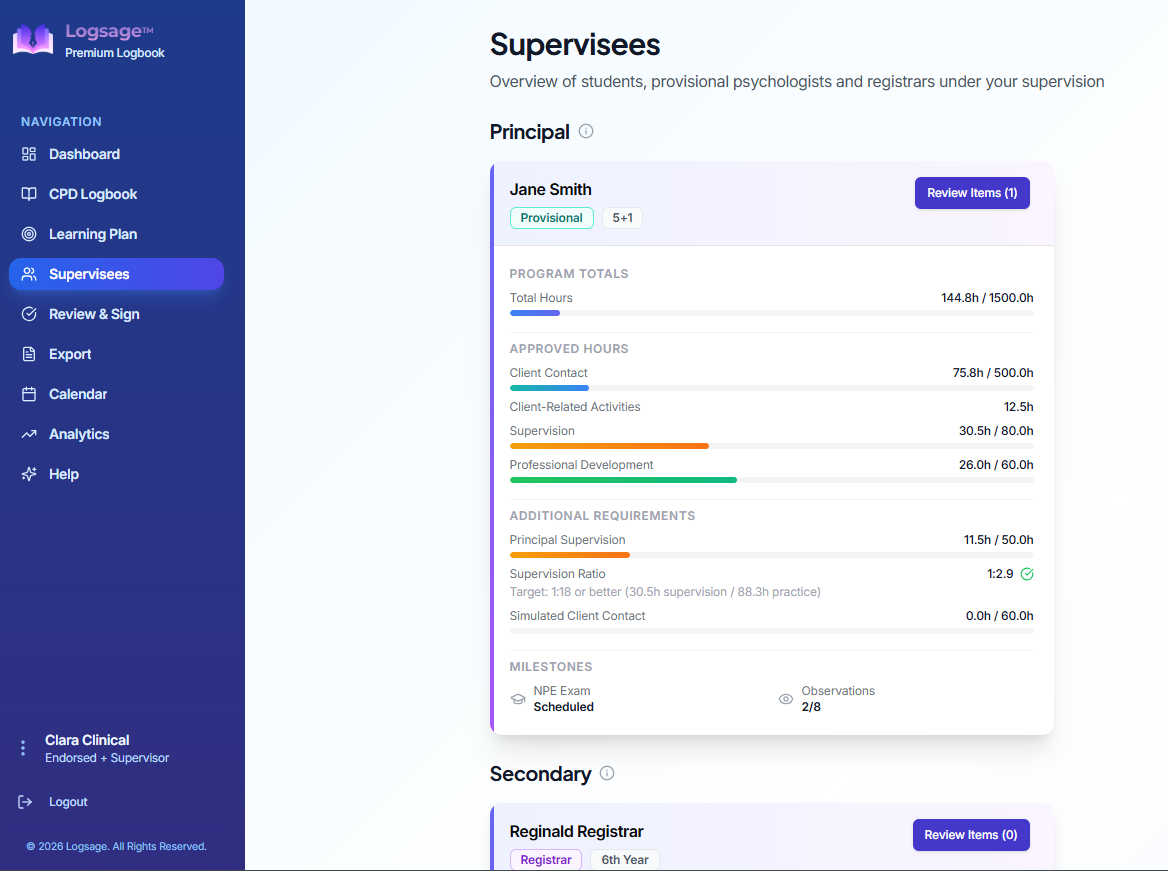
The Supervisees page shows everyone under your supervision, grouped by role, with quick access to pending reviews.
Review & Sign
Your main workflow page. Select a supervisee from the dropdown, then work through the three approval sections described below. You can also browse the full entry history and download previously approved weeks and logbooks.
The Three Levels of Approval
Logsage supports three levels of supervisor approval. Each serves a different purpose in the supervision workflow:
1. Individual Entry Approval
Review and digitally initial individual supervision and professional development entries. You can Initial an entry with one click, add a Comment along with your initials, or Suggest Edit to return an entry to your supervisee for revision.
Both principal and secondary supervisors can initial entries assigned to them (i.e., the supervisor who delivered a supervision session).
2. Weekly Approval
As the principal supervisor, you can approve all client contact and client-related entries for a specific week (Monday–Sunday) in one action. You digitally sign the weekly approval, which is recorded in your supervisee’s logbook.
Before approving a week, you must initial all supervision and PD entries for that week. This matches Ahpra’s recommendation for approximately weekly logbook review.
3. Custom Period Approval
For larger milestones—such as progress reports, supervisor changes, or program completion—your supervisee can request that you review and digitally sign their complete logbook for a custom date range. You will see these requests under Logbook approval requests on the Review & Sign page.
For more detail on how these levels work from the supervisee’s perspective, see our guide on Supervisor Reviews & Approvals.
Using Weeks View vs Table View
When reviewing entries on the Review & Sign page, you’ll see a Weeks / Table toggle at the top of entry lists. On desktop, the default is Table view, which shows a compact summary of entries.
For a detailed review, switch to Weeks view (the filled/dark toggle button). This expands entries grouped by week and shows the full details of each entry—including the ability to Comment or Suggest Edit on individual entries within a week.
Use Weeks view when you need to review entry-level detail or leave feedback before approving a weekly period. Table view is useful for a quick overview of hours and entry counts.
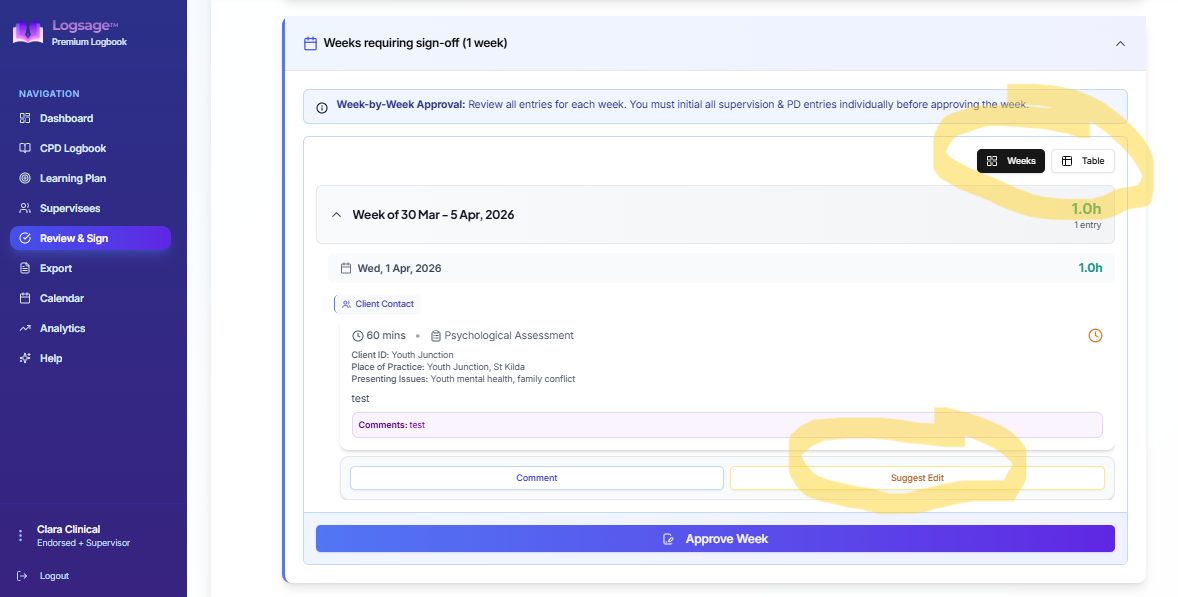
Switch to Weeks view to see full entry details and comment on or suggest edits to individual entries within a week.
Principal vs Secondary Supervisor
Your role determines what you can sign:
- Principal supervisor — can initial supervision/PD entries, approve weekly periods, and sign full logbook certifications
- Secondary supervisor — can initial their own supervision/PD entries and view the supervisee’s full entry history; weekly and logbook sign-off is handled by the principal supervisor
Students, Provisionals, and Registrars
Logsage is used across all supervised training pathways in Australia:
- Psychology students on university placement (including programs configured for specific universities)
- Provisional psychologists completing 5+1, 4+2, or higher-degree internship programs
- Registrars working toward area of practice endorsement
The supervisor workflow is the same regardless of pathway: your supervisee adds your email on their Supervisors page, and once your Logsage account uses that same email, you can review and sign their entries through Review & Sign.
Prefer Manual Signing?
If you’d rather sign logbook entries on printed PDFs instead of using the app, ask your supervisee to disable digital signing when they add you as a supervisor. They can then generate PDF reports with designated signature areas for you to sign manually.
Getting Help
Our team is here to help supervisors get set up:
- Email: support@logsage.com.au
- In-app: Use the feedback form in your Profile settings
- Contact page: Visit our contact page